Inviting your clients
Bring the clients you already have. Send each one an email invite from the app; when they accept, they're on your Clients list and you can message each other.
Before you can invite
Invites are on both plans. You can send them once:
- your background check has passed, and
- you've saved your weekly working hours.
Your client's email tells them they can book you, so your booking page needs to be live first. Until then, Invite clients shows a card saying what's left — Finish your background check to invite your clients. or Set your availability to invite your clients. — with a link to that step. See Getting started.
Send an invite
-
Open Invite clients
Go to Clients and tap Invite clients at the top.
-
Enter their email and send
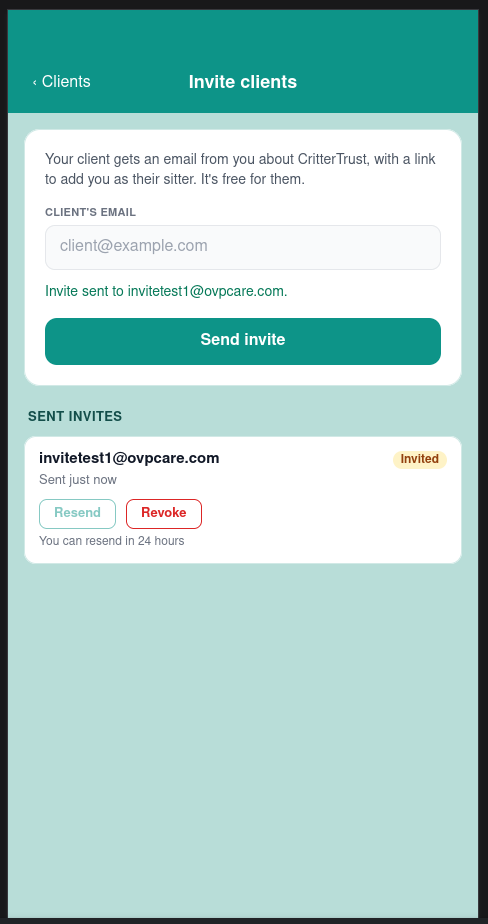
Type your client's email address under CLIENT'S EMAIL and tap Send invite. You'll see Invite sent to their address, and the field clears so you can send the next one.
Use the address they'll sign up with. That's how the app matches them to your invite if they install the app instead of tapping the link in the email.
What your client gets
An email from your name via CritterTrust that:
- says who you are, with your business name
- says you've passed a Checkr background check
- explains that CritterTrust is free for pet owners, with no fees: they can request visits from your booking page, message you, get your report cards with photos and a map of the visit, and pay your invoices by card
- has a See the invitation button, and a link to get the app
If they reply to the email, it comes to you, at the email address on your CritterTrust account. (If you signed up with Apple and chose to hide your email, the invite asks them to message you on CritterTrust instead, because Apple's private addresses can't receive their replies.)
What your client does
- They tap See the invitation. A page shows your photo, your name and your business.
- They tap Continue on the web to create an account, or Sign in if they already have one. Pet owner is already selected for them.
- Once they're signed in, a Sitter invites screen asks them to Add as my sitter.
Nobody is added without tapping that button, including people who already use CritterTrust.
When they accept
- You get an email and a notification: your client's name added you as their sitter.
- They appear on your Clients list, showing No bookings yet until they book.
- You can message each other — the conversation is in More → Messages.
- You see their name and photo, and their pets' names, breeds and photos.
Until they book you, you don't see their address, email or phone. Those come with their first booking, as they do for anyone who books you through your page.
To get their first visit on the calendar, they can book you from your booking page or the app. You can also send them a booking with + Booking in your conversation once they've sent you a message. Invoices are for clients who've booked you, so a client who has only accepted an invite won't be in your invoice list yet.
Keeping track of your invites
Every invite you've sent is listed under SENT INVITES, newest first.
| Status | What it means |
|---|---|
| Invited | Sent, and waiting for them to accept |
| Connected | They accepted. They're on your Clients list |
| Revoked | You withdrew it. The link no longer works |
An invite stays Invited until your client accepts. The app doesn't show whether the email was opened.
Resend
On an Invited invite, tap Resend to send the same email again. The link inside stays the same, so an older copy still works.
- You can resend 24 hours after the last send.
- Each invite can be resent 3 times.
If an email couldn't be sent at all, the app says so, and you can resend straight away.
Revoke
Tap Revoke on an Invited invite to withdraw it. Their link stops working. You can't revoke an invite once it's Connected.
Limits
- 25 new invites a day. If you reach it, the app tells you when you can send more.
- One invite per address at a time. To invite someone again, revoke the first invite.
When an invite won't send
| The app says | What it means |
|---|---|
| You've already invited this address. | There's already an invite to them under SENT INVITES. Resend that one. |
| This person is already one of your clients. | They've booked you before, so they're on your Clients list already. |
| This address can't receive invites. | We can't send CritterTrust invites to this address. Send them your booking page link instead. |
| That's your own address. | Use your client's email address. |
Common questions
My client didn't get the email
Ask them to check their spam or junk folder, and that you have their email address right. After 24 hours you can tap Resend. You can also send them your booking page link — booking you works too.
My client signed up but isn't on my list
They need to tap Add as my sitter. If they signed up with a different email address from the one you invited, ask them to open the invite email and tap See the invitation while signed in — the link works with any account.
Can my clients stop getting invites?
Yes. Every invite email has a Stop CritterTrust invites link at the bottom. It stops invites to that address from every sitter on CritterTrust.
Can I invite clients by text message, or import a list?
Not yet. Invites go by email, one address at a time. For a client without email, send them your booking page link.